Studio: Intent-First Agent Builder
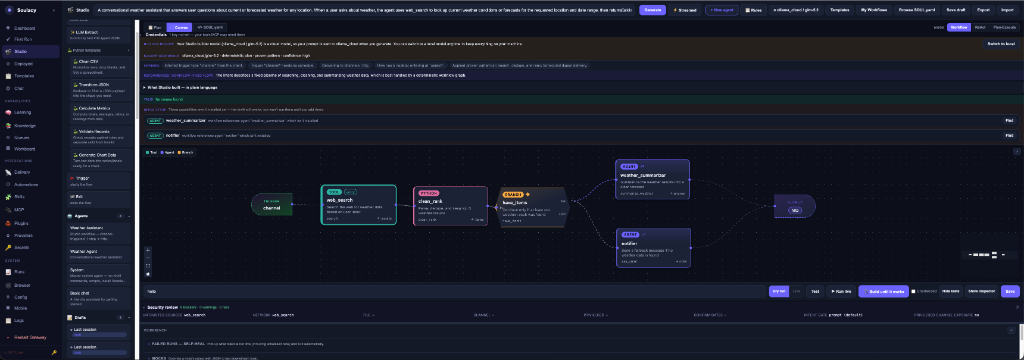
Studio turns a plain-English description into a reviewable Soulacy agent. In v0.1.8, Studio defaults to a native tool-calling agent strategy. Generating a fixed workflow graph is an experimental, explicit opt-in.
The important rule is simple: suggestions from the refinement model are not authoritative. Your selected provider, model, trigger, delivery behavior, and destination are applied to the generated definition.
Before you start
- Open Providers, configure at least one provider, and select Test connection.
- Configure any inbound or outbound channel the agent will use.
- Open Studio and verify the Studio builder model shown at the top.
- Decide whether the agent is conversational, manually run, scheduled, or webhook-driven.
Studio can only select providers, models, tools, MCP servers, skills, knowledge bases, and channels that the running gateway reports. If something is missing, configure it first rather than naming an unregistered resource in the prompt.
The authoring path
1. Describe the outcome
Write the job in user terms. Include the information that changes execution:
- what starts the agent;
- what the agent must accomplish;
- which real tools or data sources it may use;
- where the result belongs;
- whether delivery is a reply or a separate outbound message;
- success criteria and important limits.
Example conversational intent:
Build a conversational weather expert. A user asks about current conditions, forecasts, or alerts in Chat or Telegram. Resolve place names with the registered weather MCP tools and reply in the same conversation. Do not run on a schedule and do not initiate outbound messages.
Example scheduled intent:
At 07:00 America/Chicago every weekday, fetch the forecast for Chicago and send a short commute advisory to Telegram chat 123456789. If weather data is unavailable, send a brief failure notice rather than inventing a forecast.
2. Make trigger and delivery authoritative
The Studio understood panel sits beside the prompt on the main Studio page. Use its controls before selecting Refine prompt or Generate.
Trigger choices
| Choice | Use it for | Dependent settings |
|---|---|---|
| Auto | Let Studio infer the trigger | Review the inferred trigger before saving |
| Manual | Runs started from Studio, Chat, CLI, or API | No cron or inbound channel required |
| Schedule | Unattended cron execution | A valid cron expression is required; configure outbound delivery if a person must receive the result |
| Channel | A message arriving on a channel | Choose the inbound channel; ordinary output should normally reply to that conversation |
| Webhook | An external HTTP event | Configure the webhook/event input expected by the agent |
Changing the trigger updates the dependent requirements. Schedule asks for a cron expression; Channel asks for an inbound channel. Those requirements block generation when incomplete, so a model cannot silently fill them with guesses.
Delivery choices
| Choice | Meaning |
|---|---|
| Auto | Studio infers delivery from the confirmed trigger and intent |
| Reply | Return the answer through the conversation that started the run |
| None | Produce a result without channel delivery |
| Named channel | Initiate outbound delivery through that configured channel |
A named outbound channel requires a destination. For Telegram this is normally a numeric chat ID; Slack and Discord use their platform-native channel IDs. Changing away from outbound delivery removes the destination requirement.
Reply is not channel.send
A normal conversational response is returned by the active run. It should
not call channel.send. That tool is for scheduled, one-off, or cross-channel
outbound delivery and may correctly open an Action Required approval
dialog when listed in confirm_tools.
3. Refine without surrendering control
Refine prompt asks the configured Studio model to rewrite the request as a clearer specification. Review:
- the refined prompt;
- assumptions made;
- unanswered questions;
- the recommended agent strategy.
Edit incorrect assumptions directly. The trigger and delivery controls remain authoritative even when the refined text suggests something else.
Refinement is optional. Generate can build directly from the original prompt.
4. Generate and choose a strategy
Studio exposes four execution strategies:
| Strategy | Status | Best for |
|---|---|---|
| Auto | Recommended default | Native model tool-calling with bounded turns; most conversational and tool-using agents |
| ReAct (advanced) | Manual advanced option | Models that reliably alternate reasoning and tool calls; looping research or investigation |
| Plan-Execute | Advanced | Longer tasks that benefit from an internal plan and observable phase completion |
| Workflow | Experimental | A truly fixed graph whose ordering and bindings must be deterministic |
Studio does not generate Workflow by default. Selecting it displays an experimental warning and requires confirmation before generating the graph. Treat the output as a draft: inspect every binding, test realistic inputs, and keep a fallback for missing credentials, unavailable tools, and partial data.
No agent strategy is universally production quality. Reliability depends on the model's tool-calling behavior, the tool contracts, timeouts, external services, and the quality of tests. Auto is the safest general default, not a guarantee.
5. Verify provider and model
Studio has two separate model choices:
- Studio model: the configured provider/model used to refine and generate.
- Model this agent runs on: written to the saved agent's
SOUL.yaml.
Open the model picker to set the execution provider and model from the gateway's registered catalog. Leaving provider blank inherits the configured default. If a provider reports no model list, Studio permits a manual model ID, but you should verify that ID on Providers before deployment.
Before saving, inspect the generated llm.provider and llm.model. Never
accept a provider or model merely because it appeared in refined prose.
6. Review the generated contract
For reasoning agents, the Agent contract explains the generated behavior:
- Goal: the observable outcome of a successful run;
- Instructions: behavioral rules and execution constraints;
- Available capabilities: the actual tools, MCP calls, peers, skills, and knowledge resources the agent may use.
Studio fills Goal and Instructions deterministically when model output omits them. Still review both fields: a populated contract can be wrong even when it is syntactically complete.
The contract validator checks the prompt, tool allowlist, peer references, step/time budgets, provider fit, channel delivery, capability scope, persona consistency, and built-in use. Blockers prevent saving; warnings require human judgment.
7. Inspect, test, and save
Depending on the strategy, use these views:
| View | What it shows |
|---|---|
| Agent | Reasoning-agent contract, capabilities, and strategy settings |
| Plan | Plain-language Trigger, Work Plan, and Delivery lanes for workflows |
| Canvas | Advanced graph wiring and node configuration |
| SOUL.yaml | The complete saved definition and final source of truth |
Then:
- Select Preview a run or Dry run to inspect behavior without firing tools.
- Use a realistic test input.
- Run live only after resolving execution and security blockers.
- Confirm trigger, channels, destination, provider, model, tools, and
confirm_toolsinSOUL.yaml. - Select Review & save. New agents are saved disabled so deployment is a separate, explicit action.
Streamed and Wizard generation
The Generate control supports two presentations:
- Streamed runs
clarify_intent → choose_strategy → build → validate →
  repair
and displays a live transcript. - Wizard pauses for review of intermediate output before generation.
This presentation choice does not change the authoritative trigger/delivery controls or the saved strategy.
Runtime intent presets
The Studio model dialog includes timeout/budget presets:
- Fast local: tighter budgets for quick local iteration.
- Reliable local: more patient timeouts for slower local models.
- Cloud quality: generous budgets for long or complex cloud-backed runs.
The preset informs runtime budgets; it does not replace provider/model selection or make an unsuitable model reliable.
Editing trigger or delivery after generation
Select Trigger & delivery in the Build toolbar to change manual, cron, channel, or webhook settings on the draft. Recheck the dependent fields after every change:
- removing Schedule should also remove stale cron behavior;
- switching to Channel should establish an inbound channel and usually Reply;
- switching to outbound delivery should require a destination;
- switching to Reply should not retain an unnecessary
channel.sendtool.
Always review the resulting YAML after changing execution shape.
Debugging failed runs
A failed run in Activity can be opened with Debug in Studio. Studio loads the original input and structured trace, proposes a change, and shows the diff before applying it.
Build until it works performs a bounded repair loop. It stops on success or reports external blockers such as missing credentials, an unavailable model, an unconfigured destination, or a tool the agent cannot access. Successful repairs can become regression tests.
Production checklist
- [ ] Provider connection tested and exact execution model confirmed.
- [ ] Trigger explicitly matches the intended lifecycle.
- [ ] Cron and timezone reviewed for schedules.
- [ ] Inbound channel selected for conversational agents.
- [ ] Delivery is Reply, None, or an explicit channel/destination as intended.
- [ ] Tools and MCP names exist in Available capabilities.
- [ ] Goal and Instructions describe observable success and failure behavior.
- [ ] Confirmation policy matches write and outbound actions.
- [ ] Dry run and realistic live test succeeded.
- [ ] Agent saved, reviewed, and deliberately enabled.
Common symptoms
| Symptom | Likely cause | Fix |
|---|---|---|
| Refined prompt invents a schedule | Trigger left on Auto or assumption not corrected | Select Manual or Channel explicitly, edit the refined prompt, then regenerate |
| Generated agent uses the wrong provider/model | Execution model inherited or was not reviewed | Open Model this agent runs on, choose a registered provider/model, and verify YAML |
| Telegram keeps appearing as destination | Delivery left on Auto or prior draft retained a channel | Choose Reply, None, or the intended channel and clear/change the destination |
| Response appears in an approval modal | Agent called outbound channel.send and it requires confirmation |
For ordinary conversation, use Reply and remove unnecessary channel.send; otherwise approve the intentional outbound action |
| Goal or Instructions are generic | Sparse intent or fallback contract generation | Add measurable success/failure criteria and regenerate or edit the contract |
| Plan-Execute stops without a final answer | Model exhausted its loop/budget or failed final synthesis | Use a better tool-calling model, reduce the task, increase justified budgets, and inspect the run trace |
| Save is blocked | Contract, integrity, readiness, or security blocker | Open the reported panel and resolve each blocker rather than bypassing it |